Prompts
Let a robot program ask the operator a question on the HMI and wait for the answer.
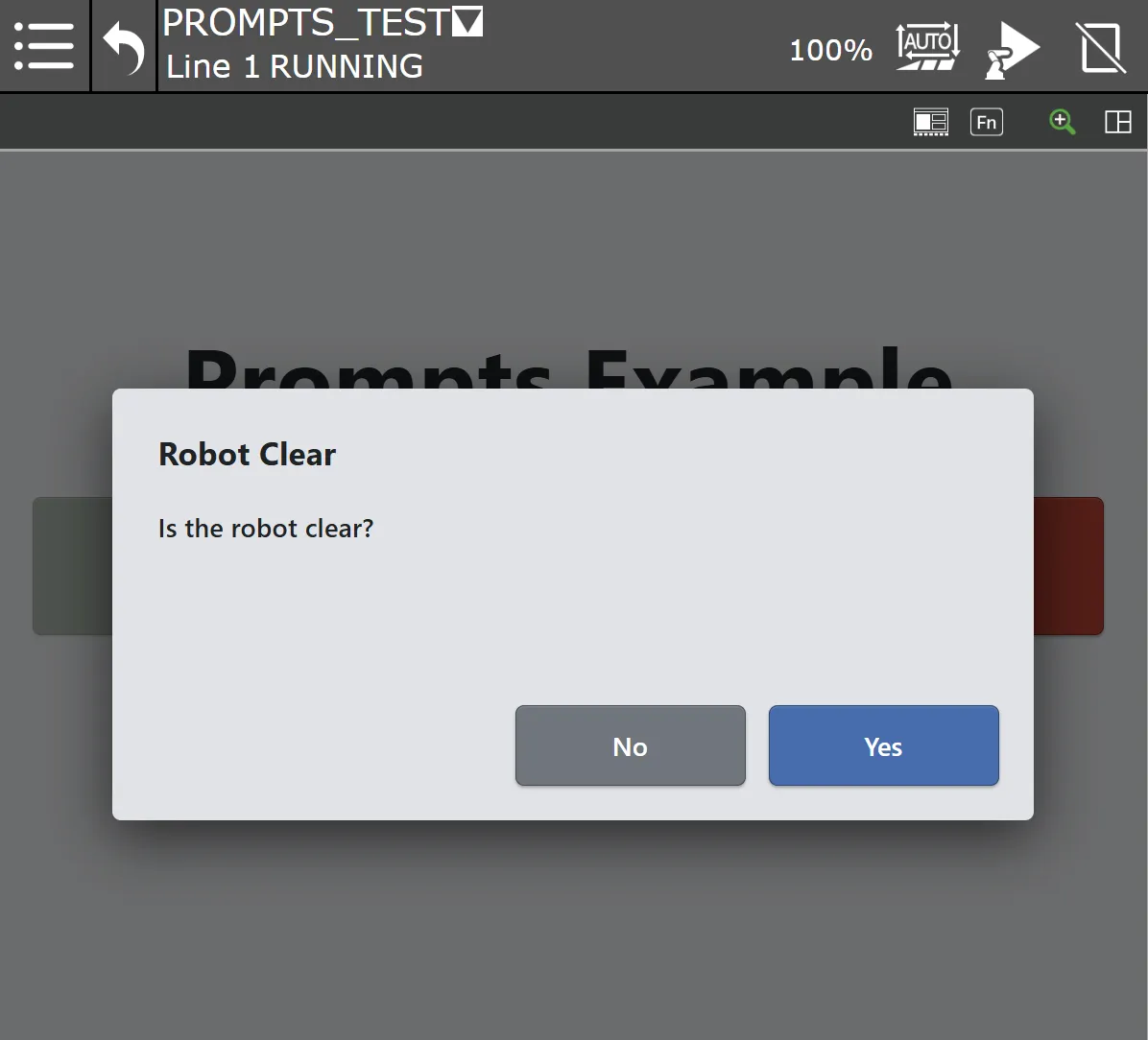
A prompt is a dialog a TP program raises by name and waits on. The program stops at the call, the prompt appears over whatever screen the operator is on, and when the operator answers, the program continues with the answer in a register:
CALL IPL_ONEROBOTICS_HMI_PROMPT('Cell 1','RobotClear',21) ;IF R[21]=0,JMP LBL[5] ;The first argument names the HMI document, by name or id. The second names the prompt. The third is the register that receives the answer, and can be left out when there is nothing to report.
If the runtime is not on the pendant’s screen, the call brings it up, opening the named document if another one is open. A pendant split into two or three panes is put back to a single pane.
Creating a prompt
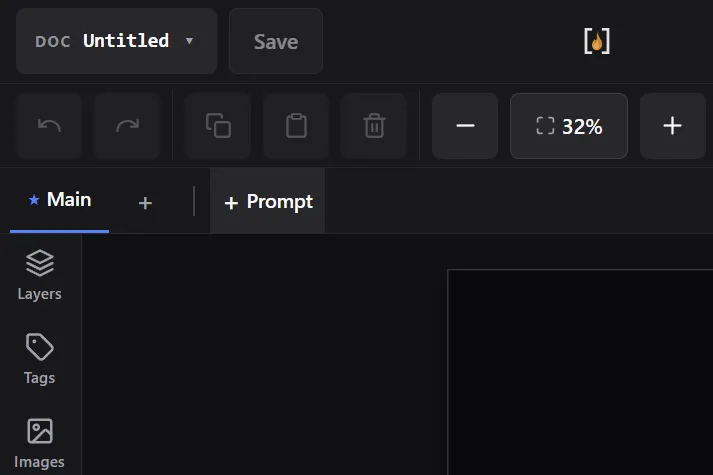
Section titled “Creating a prompt”Prompts live in the screen tab bar, after the screens. Press + Prompt, give it a name, and pick a template:
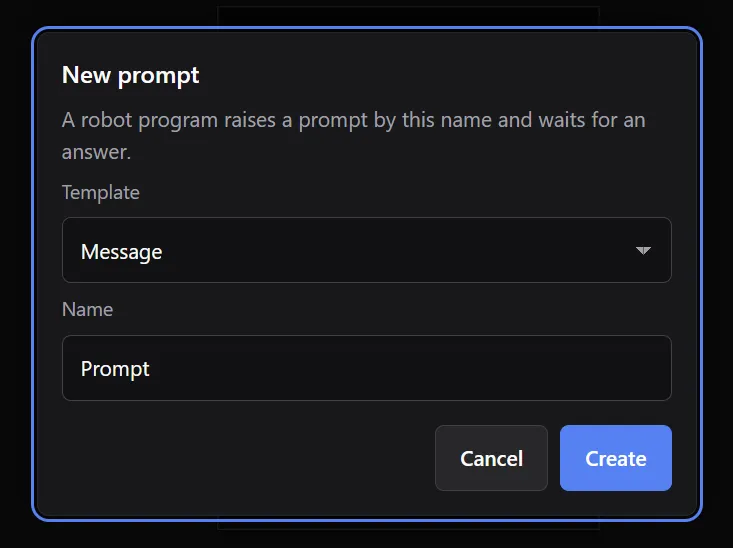
| Template | What it makes | Answers |
|---|---|---|
| Message | A title, a message, and OK | 1 |
| Yes / No | A title, a question, No and Yes | No 0, Yes 1 |
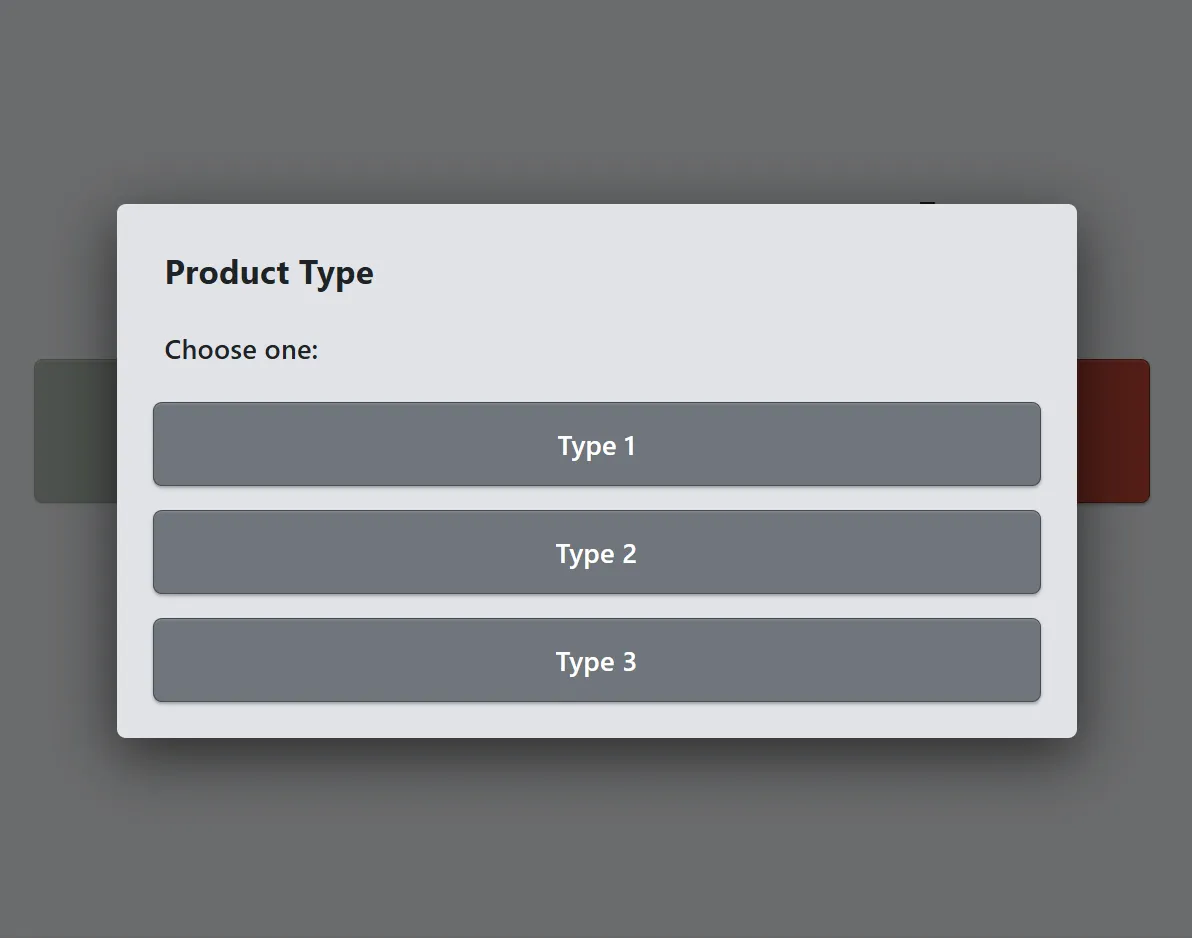
| List (buttons) | A title, a line of text, and one button per item | the item’s number |
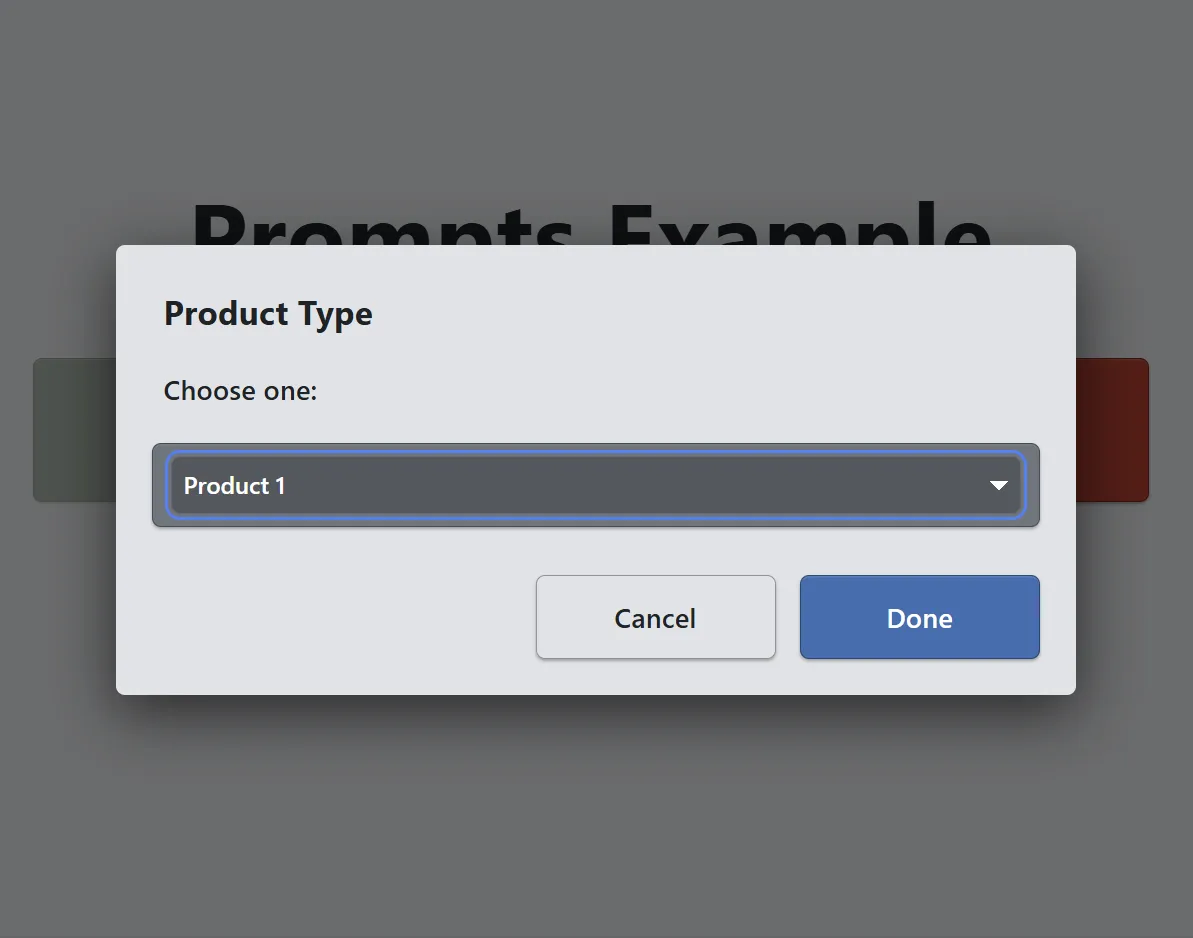
| List (dropdown) | A title, a dropdown of items, Cancel and Done | the item’s number, Cancel 0 |
A template is a starting point. The result is an ordinary screen with ordinary controls: change the text, restyle the buttons, add an image, add or delete items, or drop in an Abort button. Its size is set in the Inspector, and it is drawn on the canvas at that size.
Yes 1 / No 0 and item numbers match FANUC’s Menu Utility, so a program written for one reads the register the same way.
Answering
Section titled “Answering”A prompt closes when a control on it runs the Answer prompt action. The action carries a whole number, which lands in the register the program named in its call. It is offered in the action picker only for controls on a prompt, and every prompt must have at least one control that answers.
The answer can be an expression. The dropdown template binds its dropdown to
a Local tag named choice and gives Done the answer {choice}, so
whatever the operator picked is what the program receives. Done stays
disabled until something is picked.
To collect a number rather than a choice, start from the Message template,
add a Number input bound to a Local tag
(e.g. {choice}), and give OK the answer {choice}. The number the
operator typed lands in the register. An answer is a whole number; for a
value with decimals, bind the input to the register or KAREL variable itself
and let OK answer 1.
What the operator sees
Section titled “What the operator sees”The prompt appears over the current screen, and the screen underneath is dimmed. Until it is answered, navigation buttons do nothing and the screen select register is ignored. Holding the program leaves the prompt up; aborting it closes the prompt.
Testing without a robot
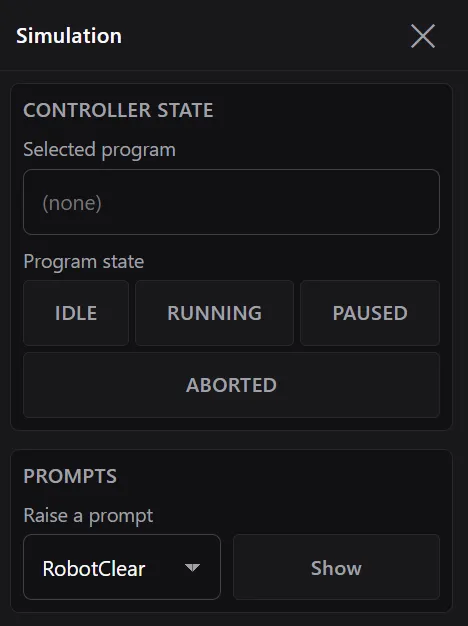
Section titled “Testing without a robot”In Preview, the Sim panel lists the document’s prompts. Pick one and press Show to raise it. Its buttons work, and the answer goes to the event log.
The timeline icon
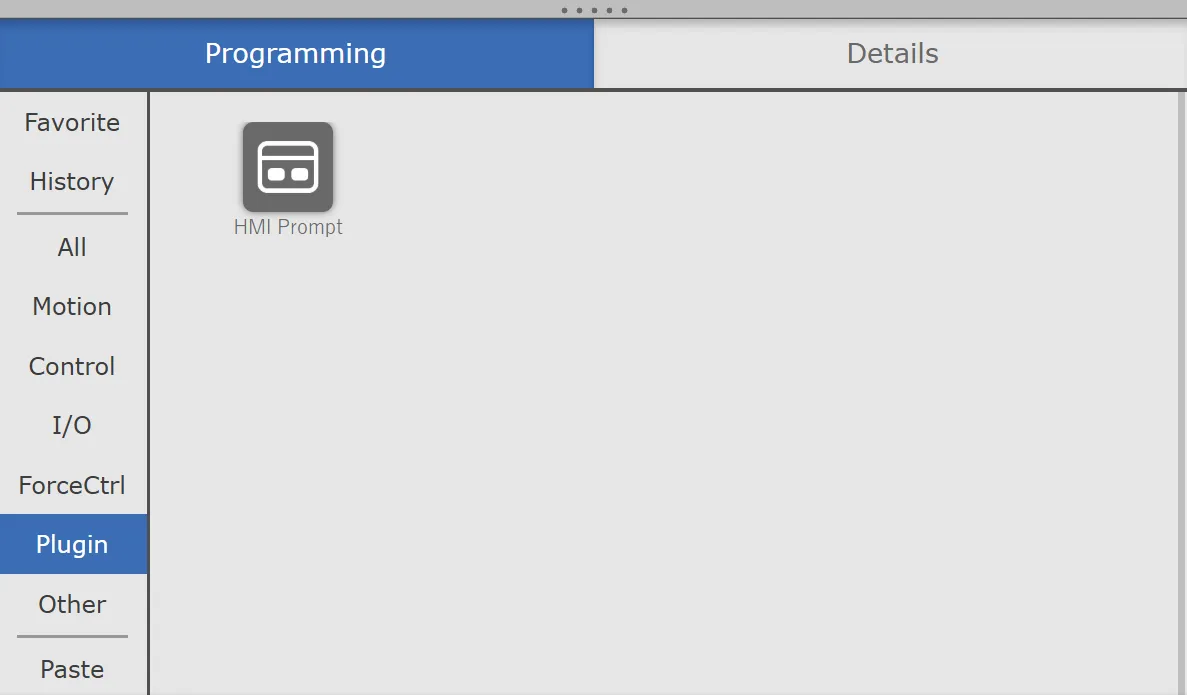
Section titled “The timeline icon”In the pendant’s timeline editor, the Programming tab’s Plugin category has an HMI Prompt icon.
Drop it into the program and open its Details tab:
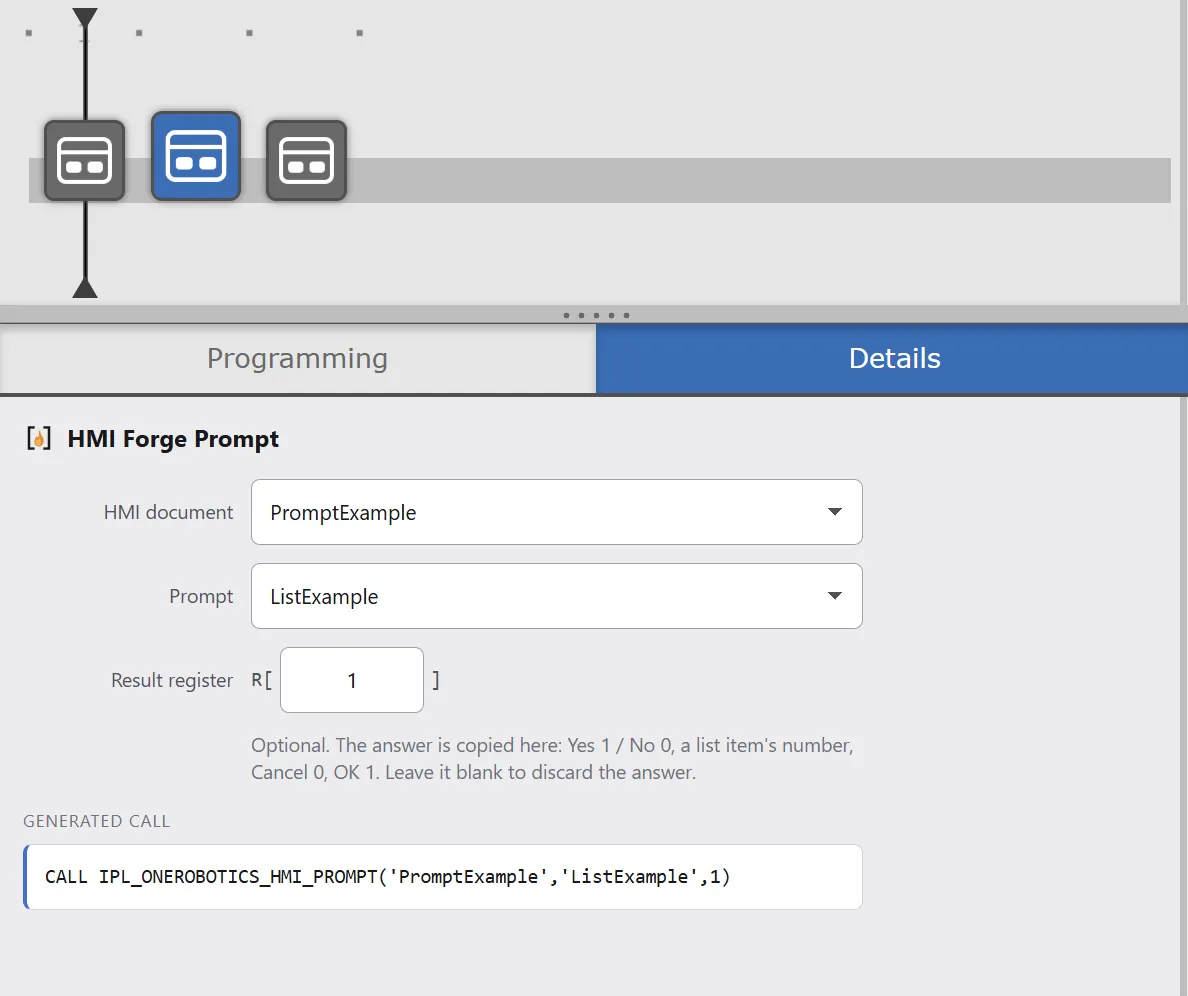
- HMI document lists the documents on the controller.
- Prompt lists the prompts in the document you picked.
- Result register is the register the answer goes to. Leave it blank to discard the answer.
The call the icon will write is shown underneath, and it is saved as soon as a document and a prompt are picked. The fields can be changed only while the teach pendant is enabled, like the rest of the editor.
A document whose name another document shares is listed with its id, and the call uses the id.
The TP program
Section titled “The TP program”The icon is the usual way to insert the call. FANUC restricts what the
legacy editor can do with IPL_ programs — adding a call to one, editing
its arguments — so to write the call there, ask ONE Robotics for a wrapper
program without the IPL_ prefix and call that instead. A program compiled
offline can call IPL_ONEROBOTICS_HMI_PROMPT directly.
A message:
CALL IPL_ONEROBOTICS_HMI_PROMPT('Cell 1','LoadFixture') ;A yes / no question:
CALL IPL_ONEROBOTICS_HMI_PROMPT('Cell 1','RobotClear',21) ;IF R[21]=0,JMP LBL[99] ;A list:
CALL IPL_ONEROBOTICS_HMI_PROMPT('Cell 1','ProductType',22) ;SELECT R[22]=1,CALL TYPE1 ; =2,CALL TYPE2 ; =3,CALL TYPE3 ; ELSE,JMP LBL[99] ;An empty document name means whichever document the runtime has open.
Alarms
Section titled “Alarms”HMI prompt … not found and HMI document … not found stop the program: the prompt or the document named in the call does not exist. Names are matched without regard to case; check the spelling against the tab bar, and remember that renaming a prompt changes what the program has to call. With a wrong document name the runtime also shows its document picker, saying no HMI matches the name.
HMI prompt … is waiting - open the HMI is a warning. The program has been waiting more than fifteen seconds for the runtime to show the prompt. Open the HMI Forge runtime on the pendant; the prompt appears and the warning can be cleared.
Limits
Section titled “Limits”- Prompt names are plain ASCII with no quotes, unique within a document, and best kept under 36 characters.
- A prompt larger than the page is cut off at the page’s edge. Validate warns about it.
- One prompt shows at a time.
Related
Section titled “Related”- Button — the Answer prompt action alongside the others.
- Dropdown — the control behind a dropdown list.
- Tags — Local tags, which a prompt’s dropdown writes.
- Expressions —
{choice}and what else an answer can be.