3D View
Show the controller's live 3D robot view on a screen.
CONTROLNO BINDING REQUIRED
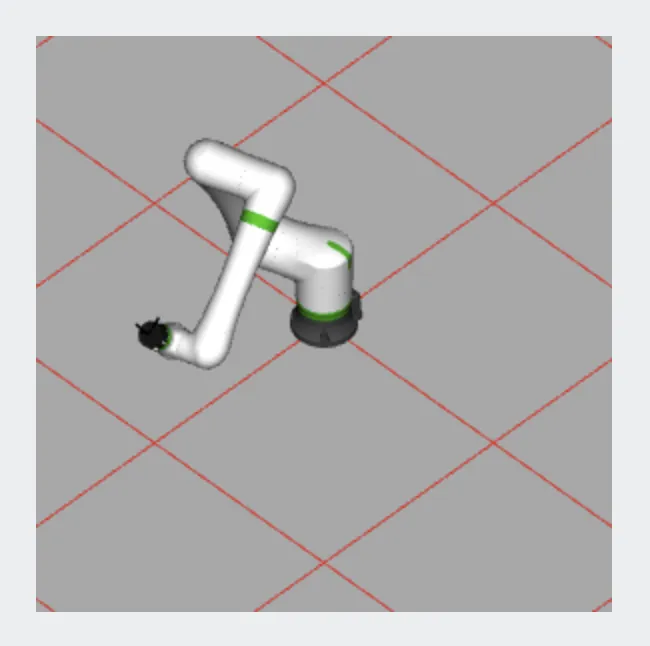
The controller's own 3D view, embedded in a screen. It follows the robot as it moves.
The 3D View shows the controller’s own live 3D view of the robot, embedded in a screen. It needs no tags — size it, position it, and it shows the robot moving.
Adding the control
Section titled “Adding the control”- Open the document and select the screen you want from the screen tabs.
- In the control palette, press 3D View and drag it onto the canvas.
- Size it generously. The view has its own layout and does not scale to fit.
Properties
Section titled “Properties”| Property | What it does |
|---|---|
| Respond to touch | On (the default), operators can pan and zoom the view and move its target by touching it. Turn it off to make the view display-only: it still follows the robot live, but touches do nothing. |
| Starting view | The framing the view opens with. By default it opens on the controller’s own framing. To use your own: press Preview, pan and zoom the view how you want it, then tap Capture view in its corner. Reset to default framing goes back. At runtime the view shows a loading spinner until the captured framing is applied, then appears already framed. |
Capture a starting view and turn Respond to touch off to get a fixed, author-framed status view — the picture stays where you put it, and the robot moves inside it.
Related
Section titled “Related”- Position — the robot’s pose as numbers rather than a picture.
- Your first screen — the Preview button and where it lives.