Alarm banner
Surface active alarms and let an operator acknowledge them.

A controller fault in the banner. The first pill is the severity, the second marks it as coming from the controller rather than the document, and the time is when it fired.
The alarm banner shows whatever alarm is currently active, and nothing when none is. It has no tag of its own, and it draws from two places at once:
- Alarms you define, once for the whole document, in the Alarms panel.
- Faults from the controller — FANUC’s own error records, which arrive
while the robot’s fault light is on and are marked
SYSin the banner.
So a screen shows machine faults without anyone writing a condition for them.
An alarm is a property of the machine rather than of a screen, so it fires wherever a banner is shown.
Each entry carries its severity — ALARM or WARN — and the time it fired.
A message longer than the banner scrolls across it, holds at the end, and
returns to the start.
Adding the control
Section titled “Adding the control”- Open the document and select the screen you want from the screen tabs.
- In the control palette, press Alarm and drag it onto the canvas.
- Define the alarms themselves in the Alarms panel — each needs a message and a condition.
Properties
Section titled “Properties”| Property | Description | Default |
|---|---|---|
| Idle / Warning / Alarm variant | Theme color for each severity. | neutral, warning, error |
| Idle / Warning / Alarm fill | Direct fill colors, when a variant is not used. | theme tokens |
| Text color | Message color. | base content |
| Size | Message size in pixels. | 16 |
| Hide when no alarms active | Take up no space while nothing is active. | on |
Defining alarms
Section titled “Defining alarms”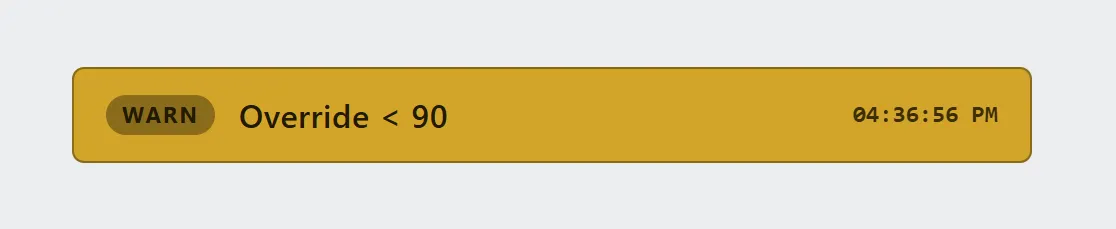
An alarm defined in this document, at warning severity. No second pill, because it did not come from the controller.
Each alarm needs two things: a message an operator can act on, and a condition that decides when it fires. Both are required: the panel will not save an alarm with a blank message or a condition that does not compile.
An alarm whose condition is already true when the screen opens fires immediately — conditions are read when the screen connects, not only when a signal next changes.
Outputs
Section titled “Outputs”The Alarms panel can name two output tags, one for alarms and one for warnings: a digital output, a robot output, or a flag. Each is on while any alarm of its severity is active and off when the last one clears, which is what a stack light’s red and amber want. The controller’s own alarms count too, unless Include controller alarms is switched off. The same tag can be named for both, and is then on for either.
The outputs follow the alarms only while the runtime is open on the pendant. They are not a safety function.
Alarm history
Section titled “Alarm history”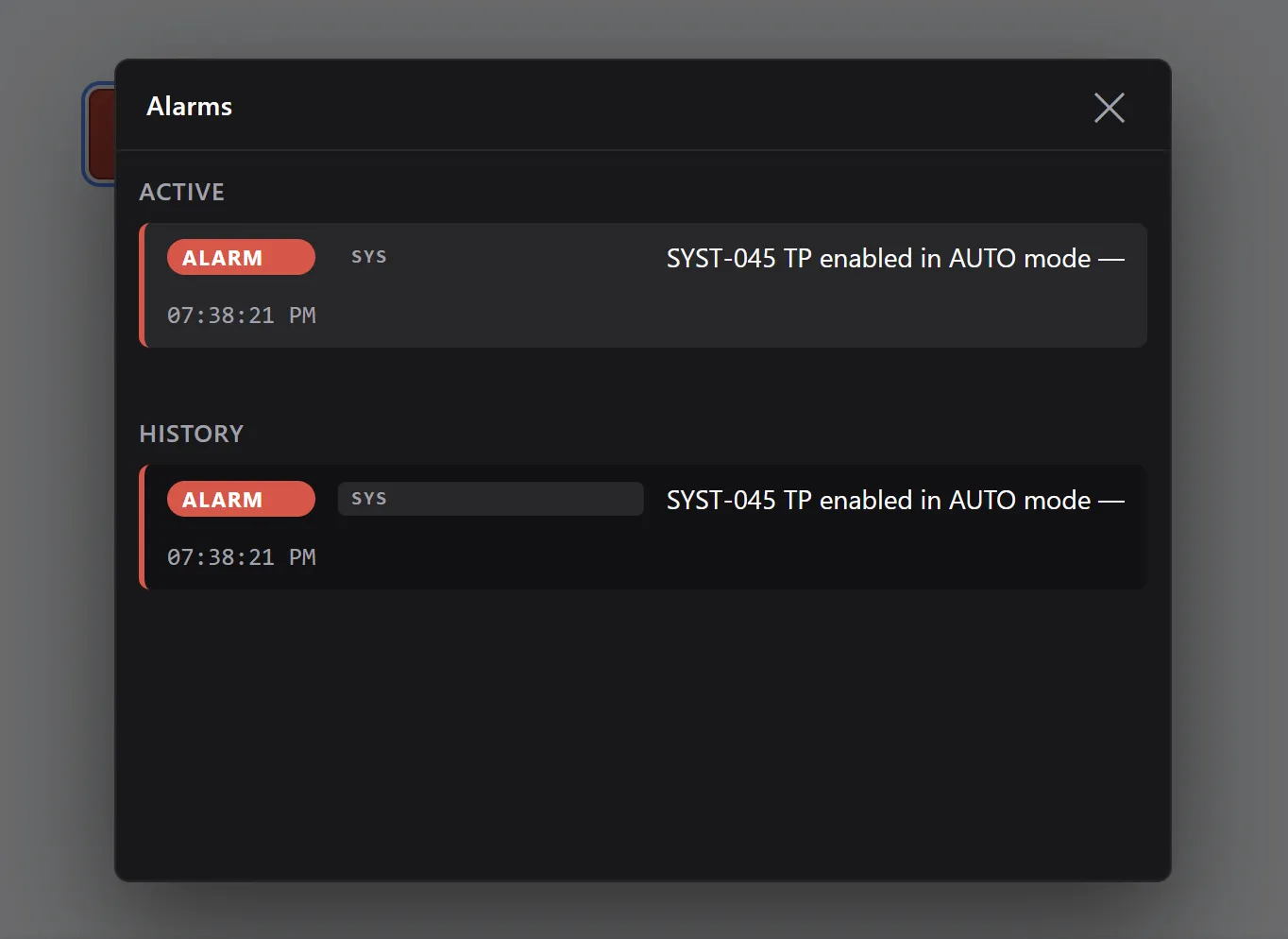
Tapping the banner opens the history. The same record appears under ACTIVE while it stands and under HISTORY once it has fired.
Tapping the banner opens an overlay listing what is active now and what has fired recently — the last 500 events, from both sources, kept across restarts of the screen. The newest 50 show first; Show older reveals the rest. A row whose message does not fit shows it in full when tapped. A Button can open the same overlay with its Show alarm history action, which is how a screen with no banner still reaches it.
Related
Section titled “Related”- Expressions — the syntax used by alarm conditions.
- Indicator — for a state worth showing continuously rather than one worth interrupting for.
- Button — a button action can open the alarm history.