Position
Show the robot's current position, or the contents of a position register.
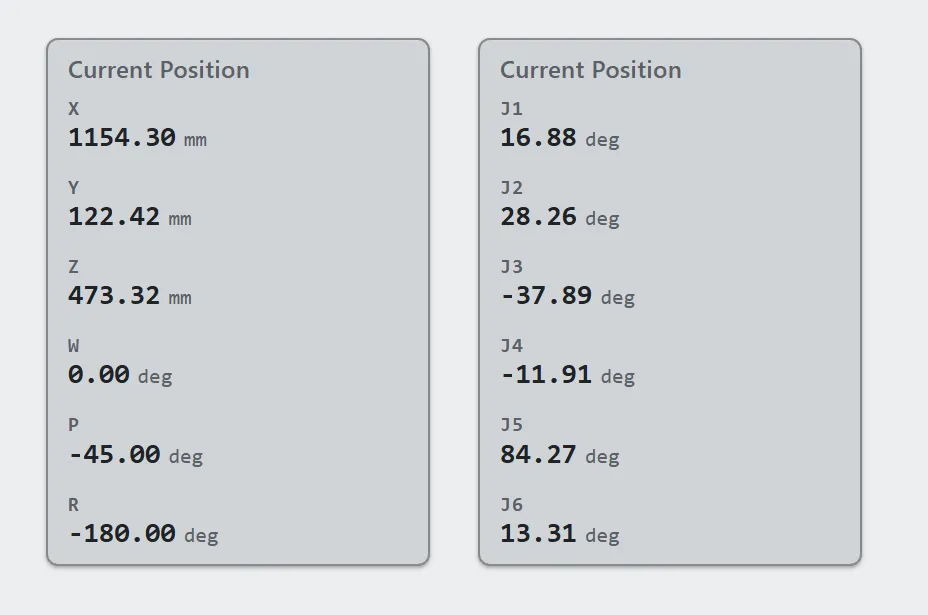
The same control on both sources: Cartesian on the left, joint angles on the right.
A position control shows where the robot is — either its Cartesian position as X, Y, Z, W, P, R, or its joint angles as J1 to J6 — or what a position register holds. It reads the controller directly, so there are no tags to declare.
It is display-only and never writes.
Adding the control
Section titled “Adding the control”- Open the document and select the screen you want from the screen tabs.
- In the control palette, press Position and drag it onto the canvas.
- Choose Cartesian, joint, or a position register, and how many decimals to show.
Properties
Section titled “Properties”| Property | Description | Default |
|---|---|---|
| Title | Heading above the values. | Current Position |
| Source | Cartesian (LPOS), joint (JPOS), or a position register (PR). |
Cartesian |
| Register | Which position register. PR only. |
1 |
| Frame | World, or the active user frame. LPOS only. |
World |
| Layout | Stacked in one column, or two rows. | stacked |
| Decimals | Digits after the decimal point. | 2 |
| Size | Text size in pixels. | 14 |
| Fill / Text / Subtext colors | Appearance. | theme tokens |
Cartesian values are millimeters and degrees; joint values are degrees, and each row carries its unit.
Six components are shown — X, Y, Z, W, P, R, or J1 to J6. Rows that do not fit the control’s height are clipped rather than scrolled, so a control sized for five shows five.
World or user frame
Section titled “World or user frame”The controller reports the TCP relative to WORLD, and that is what the control shows by default. Set Frame to user frame and it shows the same point expressed in whichever user frame the robot is currently in.
Joint angles have no frame, so the option applies to Cartesian only.
Position register
Section titled “Position register”Set Source to PR and Register to the register number, and the control
shows the values stored in that register instead of where the robot is. A
touchoff routine that writes its found location to a PR can show it on a screen
this way, with no registers copied out axis by axis. A document using this
needs runtime 1.13.0 or newer.
The values are shown as stored. A position register is relative to the frame it was recorded in, so no frame is applied and the Frame option is not offered.
The labels follow what the register holds. A Cartesian register shows X to R in millimeters and degrees; a joint register shows J1 to J6 in degrees. If a program rewrites the register in the other representation, the labels change with it.
A component that has not been taught shows a dash. A register with nothing taught into it shows dashes throughout and says uninitialized in its header, so an empty register is not mistaken for a control that has not read yet.
The header names the register, so a screen with several is never ambiguous about which one a reading came from.
Related
Section titled “Related”- Tags —
LPOSandJPOSare also available as tag kinds, for one component at a time. - System values —
uframe_numandutool_num, to show the frame numbers themselves. - Trend — to watch a value change over time rather than read it now.