Your first screen
Build a working operator screen from an empty document, and run it.
Everything on this page, built on the pendant in one sitting.
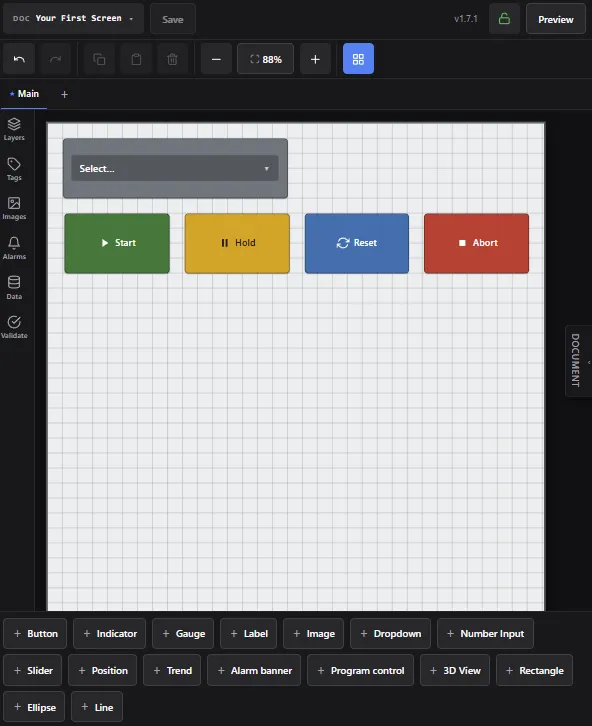
You can create a functional screen with program selection, start, hold/pause, reset and abort in just a few steps.
- Open the HMI Forge Editor via
Menu > Plugins > HMI Forge > Editor - Click the Documents dropdown menu in the top left to open up the Documents List
- Create a new document by pressing the New button at the bottom right of the screen
- The new document opens with a Properties Panel on the right. Optionally give the document a name and choose portrait, landscape or a custom page size. Under Theme, press FANUC so the screen matches the pendant’s own look.
- Add a Program control component from the palette at the bottom of the screen
- Add a Dropdown by hitting the Dropdown button on the controls palette at the bottom of the screen
- Open the properties panel on the right
- For Tag, pick
active_program— it is under System values, and needs no tag of your own - Select “TP Programs” to automatically populate the dropdown with the current list of TP Programs on the robot. The list is not stored in the document: it is read from the controller each time the HMI loads, so a program added later appears on the next load
- Preview the working HMI with the Preview button in the top right
- Go back to the editor with the Edit button in the top right
- Save your HMI with the Save button
Trying it in Preview
Section titled “Trying it in Preview”Preview runs the screen in the editor as an operator would see it. It reads live values from the controller, but nothing you press reaches the robot: a button logs what it would have done instead of doing it.
To drive the screen, press Sim in the top bar. The Simulation panel holds:
- Controller state — the selected program and its state. Set the state to RUNNING and the Program control’s Start lights while Hold becomes available.
- Prompts — each prompt in the document, with a Show button.
- The document’s tags, each with a switch or a value field. A value set here shows a Held badge and stays until you press the badge, or Reset at the top of the panel.
To let presses reach the robot, press Go live and confirm. The top bar reads Preview — LIVE in red while they do. Leaving Preview turns it off.
Adding an alarm banner
Section titled “Adding an alarm banner”The Alarm banner shows whatever alarm is active and takes no space when none is. It draws from two places: the controller’s own faults, which it shows with no setup, and alarms you define for the document. Tapping it opens the history.
- Add an Alarm banner from the palette and place it across the top of the screen.
- In the Inspector, switch off Hide when no alarms active. The banner then keeps its place while idle, so the layout does not shift when an alarm arrives. Leave it on for a banner that should take no space until something is wrong.
- Press Preview and press the pendant’s E-stop. The fault appears in the
banner, marked
SYS. Release it and reset, and the banner clears.
Every screen that should show faults needs its own banner. Copy this one to the other screens as you add them.
Adding your own alarm
Section titled “Adding your own alarm”Your own alarms are conditions you define once for the document, with a message the operator sees while the condition holds. They show in the same banner. To warn when the speed override is turned down:
- Press Alarms in the rail on the left.
- Press + Add alarm. Give it a name, choose warning for the severity,
and enter the message
Override below 90%. - For When, enter
{override} < 90, then press Save. - Press Preview, open Sim, and set
overrideto50. The banner shows the warning. Tap it for the history.
See Alarm banner for outputs and the history.
Adding a picture
Section titled “Adding a picture”Pictures come in from a USB stick and live in the document from then on. To put a logo on the screen:
- Copy
logo.pngto the root of a FAT32 USB stick and insert it in the controller’sUD1:port. - Press Images in the rail on the left, then + Import from USB, and
pick
logo.pngfrom the list. - Add an Image from the palette. In the Inspector, under Default
image, choose
logo.png. Place it in a corner and size it to taste.
Display decides how the picture fills the control. The default, contain, shows the whole picture at its own proportions. The imported file is copied onto the controller, so the stick can come out, and it travels with the document in a backup or export. See Image for pictures that change with machine state.
Screens
Section titled “Screens”A document can have several screens. The tabs above the canvas switch between them; + adds one. Hold a tab to rename, duplicate, or delete the screen, or make it the one the runtime opens on.
Adding a second screen
Section titled “Adding a second screen”A manual-functions screen, with a button that drives an output and a way to get there and back:
- Press + in the tab strip. Hold the new tab, choose Rename, and name
it
Manual. - Add a Button from the palette. In the Inspector, set its Label to
Clamp. - Under On press, press + Add action and choose Toggle. For
Tag, pick + New, choose
ROfor the kind and1for the index, then Create. Each press flips RO[1]. The tag is namedro_1. - Under Lit when, enter
{ro_1}, and set Label when lit toUnclamp. Set Variant tocustom, which is gray at rest and blue when lit. The button now changes color while the output is on, and names what the next press will do: Clamp while it is off, Unclamp while it is on. - Add two more buttons, labeled
MainandManual. Give each a Navigate to screen action pointing at the screen of the same name. Place them side by side along the bottom edge. - Drag across both navigation buttons on an empty part of the canvas to select them, then press Copy in the toolbar.
- Switch to the Main tab and press Paste. The buttons land at the same position they had on Manual, so the bar looks the same on both screens.
Press Preview to try it. The Sim panel lists RO[1], so you can watch
the Clamp button flip it.
Asking the operator a question
Section titled “Asking the operator a question”A prompt is a screen the robot program raises over whatever the operator is looking at, and closes with their answer. To have the program check that the cell is clear before it starts:
- Press + Prompt at the end of the tab strip. Name it
RobotClearand pick the Yes / No template. - Select the question label and set its Text to
Is the robot clear to start?. The No and Yes buttons already answer 0 and 1. - Press Preview, open Sim, and under Prompts press Show. The prompt opens over the screen. Press Yes to close it.
On the robot, one line in the TP program raises it and waits for the answer in R[21]:
CALL IPL_ONEROBOTICS_HMI_PROMPT('Cell 1','RobotClear',21) ;IF R[21]=0,JMP LBL[99] ;See Prompts for the other templates and the timeline icon that inserts the call.
Running it on the robot
Section titled “Running it on the robot”Documents are stored on the controller as soon as they are saved, so there is no separate deploy step. All you have to do is open the runtime.
Menu > Plugins > HMI Forge > Runtime- The HMI will display if you only have one saved HMI. Otherwise select the one you just created.
Before handing the device to operators, consider locking the editor so screens can be run but not changed.
Related
Section titled “Related”- Program control — Start, Hold, Reset and Abort as one control, with no tags to declare.
- Alarm banner — the alarms you define and the controller’s own faults, in one strip.
- USB import & export — pictures, documents, and tags on and off the controller.
- Prompts — questions the robot program asks the operator.
- Dropdown — bind option values to a tag on select.
- Tags — naming the signals a control reads and writes.
- System values —
active_programand the other values available without declaring a tag. - Themes — changing the look of every screen at once.
- Backup & restore — getting a document onto a second controller.